DNS Lookup: Understanding the Internet's Address Book Published: 05 May, 2026
Introduction
Every time you type a website address into your browser, an invisible but intricate process happens in milliseconds — a process that translates the human-friendly domain name you typed into a machine-readable IP address that computers use to communicate. This process is called DNS resolution, and a DNS Lookup tool lets you see exactly what information the Domain Name System holds for any domain. It is one of the most fundamental and revealing tools available for anyone working with websites, networks, or internet infrastructure.
This guide provides a comprehensive exploration of DNS lookup: what it is, how the DNS system works, what the different record types mean, how to interpret results, and how DNS lookup is used in real-world professional contexts.
What Is DNS?
DNS stands for Domain Name System. It is often described as the "phonebook of the internet" — a distributed database that maps human-readable domain names (like google.com or wikipedia.org) to the numerical IP addresses (like 142.250.185.78) that computers use to find and communicate with each other.
Without DNS, you would need to memorize the IP address of every website you wanted to visit. DNS eliminates this barrier, allowing us to use memorable, meaningful names while the system handles the numerical addressing behind the scenes.
A Brief History of DNS
Before DNS was invented in 1983, the entire internet relied on a single file called HOSTS.TXT, maintained by the Stanford Research Institute. Every computer on the network downloaded this file regularly to resolve hostnames to IP addresses. As the internet grew, this centralized approach became completely unworkable. DNS, developed by Paul Mockapetris, introduced a distributed, hierarchical system that could scale indefinitely — which is why it still powers the modern internet decades later.
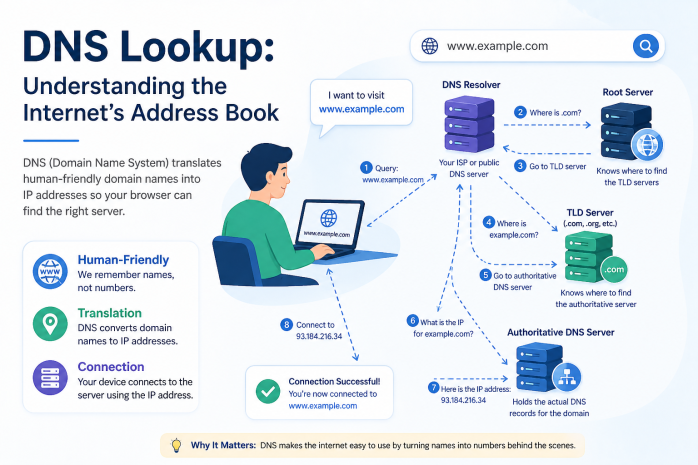
How DNS Resolution Works: Step by Step
When you enter a domain name in your browser, here is what happens:
Step 1: Browser Cache Check
Your browser first checks its own local cache to see if it has recently resolved this domain. If it has, it uses the cached IP address immediately, skipping all further steps.
Step 2: Operating System Cache Check
If the browser cache has no record, the request passes to the operating system's DNS resolver, which checks the local HOSTS file and its own cache.
Step 3: Recursive DNS Resolver
If no cache hit is found locally, the request goes to your ISP's recursive DNS resolver (or a custom resolver like Google's 8.8.8.8 or Cloudflare's 1.1.1.1). This resolver does the heavy lifting of finding the answer.
Step 4: Root Name Servers
The recursive resolver queries one of the internet's 13 sets of root name servers — the authoritative top-level servers that know where to find information about every top-level domain. The root server does not know the full answer but directs the resolver to the right TLD name server (e.g., the .com servers for a .com domain).
Step 5: TLD Name Servers
The TLD name server for .com, .org, .net, etc., knows which authoritative name server is responsible for the specific domain being queried. It directs the resolver there.
Step 6: Authoritative Name Servers
The authoritative name server for the specific domain holds the actual DNS records configured by the domain owner. It returns the requested record (such as an A record with the IP address) to the recursive resolver.
Step 7: Response Delivery and Caching
The recursive resolver passes the answer back to your browser, and both cache the result for a period defined by the TTL (Time to Live) value in the DNS record. Future queries for the same domain can be answered from cache until the TTL expires.
This entire process typically completes in 20–120 milliseconds.
DNS Record Types: A Complete Reference
The DNS system uses various record types, each serving a different purpose. Understanding these is central to understanding DNS lookup results.
A Record (Address Record)
Maps a domain name to an IPv4 address.
- Example: example.com → 93.184.216.34
- This is the most fundamental DNS record type — it is what allows browsers to find the server for a website.
AAAA Record (IPv6 Address Record)
Maps a domain name to an IPv6 address — the newer, 128-bit addressing format that is replacing IPv4.
- Example: example.com → 2606:2800:220:1:248:1893:25c8:1946
- As IPv6 adoption grows, having an AAAA record alongside an A record is increasingly important.
CNAME Record (Canonical Name Record)
Creates an alias that points one domain name to another domain name (rather than directly to an IP).
- Example: www.example.com → example.com
- CNAMEs are frequently used for subdomains (www, mail, ftp) and for services like CDNs and third-party platforms (e.g., pointing your custom domain to a Shopify or Squarespace hosted site).
MX Record (Mail Exchange Record)
Specifies the mail server responsible for accepting emails sent to the domain. MX records include a priority value — lower numbers indicate higher priority.
- Example: example.com → Priority 10: mail.example.com, Priority 20: mail2.example.com
- Without properly configured MX records, email to your domain will not be delivered.
TXT Record (Text Record)
Stores text information for various verification and security purposes. TXT records have multiple common uses:
- SPF (Sender Policy Framework): Specifies which mail servers are authorized to send email from your domain, helping prevent email spoofing.
- DKIM (DomainKeys Identified Mail): Stores public keys for email signature verification.
- DMARC (Domain-based Message Authentication, Reporting, and Conformance): Defines how receiving mail servers should handle emails that fail SPF and DKIM checks.
- Domain Verification: Services like Google Search Console, Bing Webmaster Tools, and various SaaS platforms ask you to add a TXT record to prove domain ownership.
NS Record (Name Server Record)
Specifies the authoritative name servers for the domain — the servers that hold the domain's DNS records and answer DNS queries for it.
- Example: example.com → ns1.hostingprovider.com, ns2.hostingprovider.com
- When you transfer a domain or change hosting providers, updating NS records is often the final step.
SOA Record (Start of Authority Record)
Contains administrative information about the DNS zone, including:
- The primary name server for the zone
- The email address of the zone administrator (with the @ replaced by a dot)
- Version number of the zone file (used for zone transfers)
- Various timing parameters (refresh, retry, expire, minimum TTL)
PTR Record (Pointer Record)
Used for reverse DNS lookups — mapping an IP address back to a hostname. PTR records are stored in the special in-addr.arpa domain.
- Example: 34.216.184.93.in-addr.arpa → example.com
- PTR records are important for email server reputation — many mail servers reject email from servers without a valid PTR record.
SRV Record (Service Record)
Specifies the hostname and port number for specific services within a domain. Commonly used for VoIP, instant messaging, and game servers.
- Format:
_service._protocol.name TTL class SRV priority weight port target - Example: _sip._tcp.example.com → Priority 10, Weight 20, Port 5060, sipserver.example.com
CAA Record (Certification Authority Authorization)
Specifies which Certificate Authorities (CAs) are authorized to issue SSL/TLS certificates for the domain. This helps prevent fraudulent certificate issuance.
- Example: example.com →
0 issue "letsencrypt.org"
DNSKEY and DS Records
Used in DNSSEC (DNS Security Extensions) — a suite of specifications that add cryptographic authentication to DNS responses, preventing DNS spoofing and cache poisoning attacks.
What Is DNS Lookup?
A DNS Lookup is the act of querying the DNS system to retrieve one or more DNS records for a specific domain. DNS lookup tools make this process accessible to anyone through a simple web interface, without needing to use command-line tools like dig or nslookup.
When you use a DNS lookup tool, you can:
- Query all DNS record types at once or select specific types
- View the full content of each record
- See the TTL (Time to Live) values for each record
- Identify which name servers are responding and from which server the record was sourced
- Check propagation status — whether DNS changes have spread across different resolvers worldwide
Reading DNS Lookup Results
Here is how to interpret common DNS lookup output:
A Record Output
Type: A
Name: example.com
Value: 93.184.216.34
TTL: 86400
This tells you the domain resolves to IP 93.184.216.34 and the record will be cached for 86,400 seconds (24 hours) before being refreshed.
MX Record Output
Type: MX
Name: example.com
Priority: 10
Value: mail.example.com
TTL: 3600
Email for @example.com addresses is handled by mail.example.com, with this record refreshing every hour.
TXT Record Output (SPF)
Type: TXT
Name: example.com
Value: "v=spf1 include:_spf.google.com ~all"
TTL: 3600
This SPF record authorizes Google's mail servers to send email on behalf of example.com. The ~all indicates soft fail for any server not listed.
Key Use Cases for DNS Lookup
1. Troubleshooting Website and Email Issues
DNS misconfiguration is one of the most common causes of website downtime and email delivery failures. DNS lookup allows administrators to:
- Verify that A records point to the correct server IP
- Confirm that MX records point to the right mail server
- Check that name servers are correctly configured
- Identify conflicting or missing records
2. Verifying DNS Propagation After Changes
When you update DNS records — for example, after migrating to a new hosting provider — the changes take time to propagate across all DNS resolvers worldwide. This propagation can take anywhere from a few minutes to 48 hours, depending on the TTL of the old records. DNS lookup tools that query multiple global resolvers simultaneously let you verify whether changes have propagated to different parts of the world.
3. Email Deliverability Analysis
Poor email deliverability is often a DNS problem. Using DNS lookup, you can:
- Verify your SPF record is correctly configured
- Check that DKIM keys are published correctly
- Confirm DMARC policy is in place
- Validate MX records and their priority settings
4. Security Auditing
Security professionals use DNS lookup as part of reconnaissance and security auditing:
- Identifying all subdomains configured for a domain
- Checking for dangling DNS records (records pointing to resources that no longer exist, which can be hijacked)
- Verifying DNSSEC implementation
- Checking for DNS-based vulnerabilities like open resolvers or zone transfer vulnerabilities
5. Competitive Research
DNS records can reveal valuable intelligence about a competitor's technical infrastructure:
- Which email provider they use (revealed by MX records)
- Which CDN or DDoS protection service they use (revealed by NS and A records)
- Which marketing or analytics platforms they use (revealed by TXT verification records)
- Whether they use a reverse proxy or protection service
6. Domain Ownership Verification
Many online platforms require you to add a TXT record to your DNS to prove domain ownership before accessing their services. DNS lookup lets you verify that the TXT record you added is correctly published and accessible.
7. Detecting DNS Hijacking
If users report being redirected to unexpected websites when visiting your domain, DNS hijacking may have occurred. Comparing DNS lookup results from multiple geographic locations can reveal whether different resolvers are returning different (unauthorized) IP addresses.
TTL (Time to Live): Why It Matters
Every DNS record has a TTL value measured in seconds. This value tells DNS resolvers how long they should cache the record before querying the authoritative name server again for a fresh copy.
Low TTL (e.g., 60–300 seconds):
- Changes propagate quickly (within minutes)
- Generates more DNS queries, increasing load on name servers
- Useful before planned migrations: lower TTLs in advance so changes take effect quickly when made
High TTL (e.g., 86400 seconds = 24 hours):
- Changes take longer to propagate
- Reduces DNS query load and improves response speed for cached results
- Appropriate for stable configurations that rarely change
Best Practice: Reduce TTL to 300 seconds or less 24–48 hours before planned DNS changes. After changes are confirmed working, raise TTL back to a higher value.
DNSSEC: Adding Security to DNS
DNSSEC (Domain Name System Security Extensions) adds a layer of cryptographic authentication to DNS. Without DNSSEC, DNS responses can be forged in a type of attack called DNS cache poisoning, where an attacker inserts false records into a resolver's cache, redirecting users to malicious servers.
DNSSEC prevents this by:
- Signing DNS records with digital signatures
- Allowing resolvers to verify that records come from the authoritative source and have not been tampered with
DNS lookup tools that support DNSSEC checking will show you whether DNSSEC is enabled for a domain and whether the signatures validate correctly. Seeing a "DNSSEC validated" indicator in a DNS lookup is a positive security signal.
Common DNS Problems and How Lookup Helps Diagnose Them
| Problem | Symptom | DNS Lookup Diagnosis |
|---|---|---|
| Website not loading | Browser cannot connect | Check A record — is the IP correct and pointing to active server? |
| Email not delivered | Bounce messages or no delivery | Check MX record — is it present and pointing to the right server? |
| SSL certificate errors | Browser security warnings | Check CAA record — does it permit the CA you are using? |
| Slow website for some users | Variable performance | Check if CDN is properly configured; verify CNAME records |
| Subdomain not resolving | 404 or DNS error on subdomain | Check if CNAME or A record for the subdomain is configured |
| Email marked as spam | High spam scores | Check SPF, DKIM, DMARC TXT records; verify PTR record exists |
Conclusion
DNS is the invisible infrastructure that makes the modern internet usable. Without it, the web as we know it would simply not exist. A DNS Lookup tool gives you a direct window into this critical system, allowing you to see, verify, and troubleshoot the records that control how the world connects to your domain.
Whether you are a website owner making sure your site is correctly configured, a system administrator diagnosing an email problem, a security researcher auditing domain infrastructure, or simply a curious person who wants to understand how the internet works, DNS lookup is an indispensable skill. Master it, and you gain a deep understanding of the underlying architecture of the digital world.